Change "Shutting down..." Text Message at Shutdown.
Before
After
Now lets coming to point -"How to do this??"
Follow the steps below to do this-
1. In Windows Explorer,
navigate to C:\Windows\System32\en-US\wininit.exe.mui. (see screenshot
below)

Note
The
en-US folder is in English Windows 7 copies. If you have a non-English
Windows 7 copy, then this folder will have a different name reflecting your
language instead.The table below are a few of the most common ones.
| Folder Name |
Language |
| da-DK |
Danish |
| en-GB |
English-Great Britian |
| en-US |
English-U.S. |
| fi-FI |
Finnish |
| fr-FR |
French |
| de-DE |
German |
| el-GR |
Greek |
| it-IT |
Italian |
| no-NO |
Norwegian |
| es-ES |
Spanish |
| sv-SE |
Swedish |
2.
Take
Ownership of the
wininit.exe.mui file with
your user account, and set it's permissions to
Allow your user account
Full Control. Close Windows Explorer when finished.
3.
Copy this
wininit.exe.mui file to your desktop.
4. If you have not already, download and
install
Resourse Hacker.
5. Right click on the
Resource Hacker shortcut in Start Menu - All Programs, then click on
Run as administrator. (see screenshot below)
6. If prompted by
UAC
then click on
Yes (Windows 7) or
Continue (Vista).
7. In Resource
Hacker, click on
File and
Open. (see screenshot below)
8.
In Resource Hacker, select
All Files (*.*) in the
Files of type
drop down box, navigate to and select the copied
wininit.exe.mui file on the desktop,then click on the
Open button. (see screenshot below)
9. In the left pane of Resource Hacker, expand
String
Table, and
63, to
1003. (see screenshot below)
10. In the right pane of
1002, replace the
Shutting down... text in quotes at
1003 with
the text you want instead (ex: Turning off computer...) within quotes, then click on the
Compile Script button. (see screenshot above and below)
1
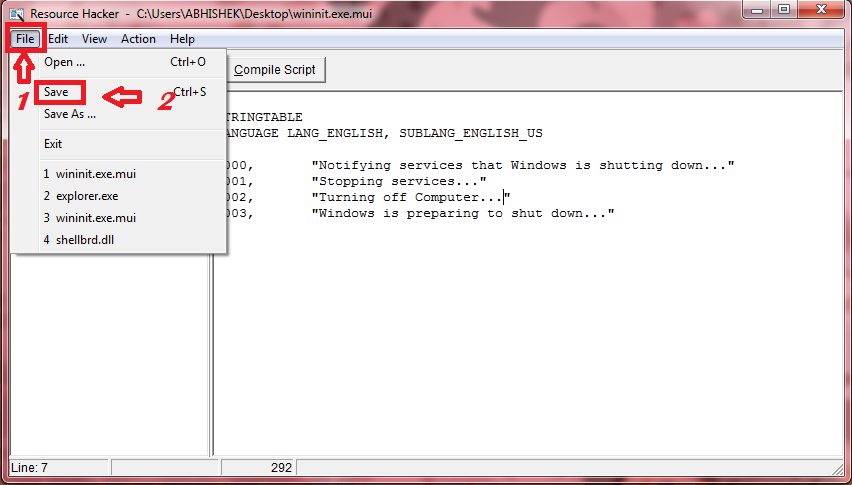
1. Click on File and Save, then close Resource
Hacker. (see screenshot below)
12. Copy the modified wininit.exe.mui
file on your Desktop, and Paste it into the
C:\Windows\System32\en-US folder from step 1. (see screenshot below step
1)
NOTE: The en-US folder is in English Windows 7 copies. If you have a
non-English Windows 7 copy, then this folder will have a different name
reflecting your language instead.
13. Click
on
Copy and Replace. (see screenshot below)
14. Restart the computer and log in to see the changes
made.

Tip
If
the "Shutting down..." message did not change at shutdown (in second shutdown) after your changes from above,
then:
1) Open a elevated command prompt i.e open
cmd and run as administrator
2) In the command prompt, type
mcbuilder and press Enter.
3) When the command window closes,
restart the computer.
15. You can delete the
wininit.exe_original.mui that ResHacker created if you like since you
can easily do OPTION TWO below to restore the default settings.
Thats
it!! Hope you have done successfully !!